Turn tape measurements into AGSU coat, trousers or slacks, shirt, cap, tie, belt, and shoe sizes. Build a unit roster, export protected Excel or PDF files, and optionally sign in by email code to keep a recovery copy.
I spent years being the person family, friends, and professional clients called when a computer slowed down. Most visits started with the same dependable routine: clear the clutter, refresh what Windows had accumulated, check security, and explain which settings were safe to touch. I built SaveMe so that this common tune-up could become one clear button instead of another long afternoon.
Zacharyah Taylor, founder of 850 Work
Simple first, sharper tools second.
The main screen is made for anyone. The Advanced Users section keeps individual cleanup, security, performance, logging, and app-removal controls available without placing risky decisions in front of someone who never asked for them.
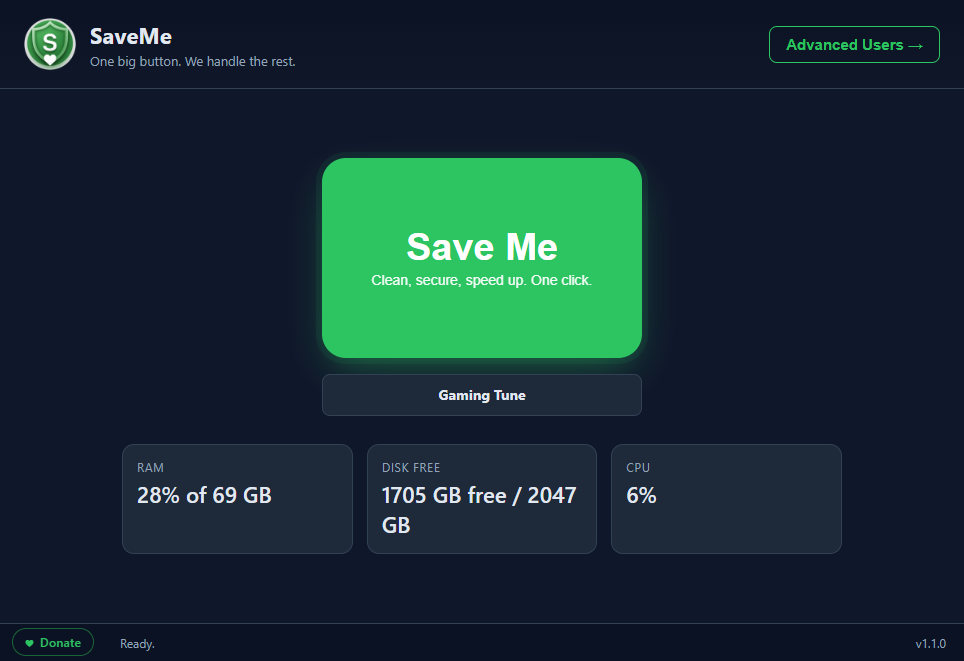
The actual SaveMe 1.1.0 home screen. The advanced tools stay behind the Advanced Users button.
The one-click routine
What happens when you press Save Me?
The home button runs a focused four-step pass and tells you if any step needs attention.
01
Clean temporary files
Removes disposable files from the current Windows temporary folder.
02
Flush the DNS cache
Refreshes Windows' saved network name lookups, which can help with stale connection issues.
03
Empty the Recycle Bin
Uses the native Windows shell operation and allows extra time for a very large bin.
04
Refresh and report
Updates the RAM, free disk space, and CPU readings, then records the real result in local logs.
The main button stays in its lane. It does not uninstall apps, disable Windows security, or search your Documents, Pictures, Desktop, or other personal folders. Emptying the Recycle Bin permanently removes items already placed there, so review it first if needed.
Advanced Users
More control when you actually want it.
The Advanced Users workspace has separate tabs for cleanup, Windows security, performance, activity history, and selected built-in app removal.
Cleanup
Run maintenance one task at a time
Choose the action you need instead of running the full home-screen routine.
Clean temporary files
Empty the Recycle Bin
Clear Windows Recent history
Run Windows Disk Cleanup
Flush DNS
Security
Keep Microsoft Defender controls together
Start a Defender quick or full scan, open Windows Security, or visit Microsoft's Safety Scanner download page from one tab.
Quick Defender scan
Full Defender scan
Windows Security shortcut
Microsoft Safety Scanner link
Gaming Tune
Use real Windows performance controls
SaveMe records the current power plan, activates High Performance, and opens the official Game Mode settings page for confirmation.
One-click Restore Normal
Balanced, High Performance, and Power Saver choices
Does not disable Defender, Windows Update, or Windows services
No unsupported registry "boost" tricks
System status
See the basics without opening Task Manager
The home screen and Performance tab show a current snapshot of memory usage, free disk space, and CPU activity.
RAM usage
Free and total disk space
Current CPU activity
Performance gauges in Advanced Users
Activity logs
Know what ran and whether it worked
SaveMe keeps up to 500 recent activity entries locally and records partial failures instead of claiming everything succeeded.
Search recent activity
Export logs as a text file
Clear the local log history
Useful failure details for support
Bloat Remover
Remove selected built-in Windows apps
Search a 12-item list, select one or several packages, and keep potentially disruptive removals clearly separated.
Safe and Risky labels
Search and multi-select
Optional provisioned-package removal
Double confirmation for Edge and Microsoft Store
Free download
Download SaveMe 1.1.0 for Windows.
Choose the normal installer or the portable edition. Both contain the same SaveMe features.
Windows installer
Best for most people. Adds a Start Menu shortcut and a standard Windows uninstaller. About 76 MB.
Portable edition
Runs without installation. Keep the executable where you want it and open it directly. About 76 MB.
New in 1.1.0: Gaming Tune now uses Windows High Performance and provides a saved, one-click way to restore the previous power plan. Version 1.1.0 also includes the reliable native Recycle Bin fix from the previous release.
Requires 64-bit Windows. SaveMe is currently built and tested on Windows 11. No 850 Work account is required.
Verify the download
Advanced users can compare the downloaded file's SHA-256 value with the official release values below.
SaveMe uses visible Windows operations and keeps potentially disruptive choices explicit.
Local by default
There is no tracking or telemetry. SaveMe's activity log is stored in the current Windows user's local SaveMe application-data folder.
Reversible tuning
Gaming Tune remembers the previous power plan and provides a Restore Normal control after a restart.
Risks are labeled
Potentially disruptive app removals require an extra warning and responsibility checkbox before they run.
Honest results
If one cleanup step fails, SaveMe reports the problem and records it instead of showing a false all-clear.
Questions before downloading
SaveMe FAQ
What exactly happens when I press Save Me?
SaveMe clears the current Windows temporary folder, flushes the DNS cache, empties the Recycle Bin, refreshes the RAM, disk, and CPU readings, and records the result locally.
Will SaveMe make every computer fast?
No utility can guarantee that. SaveMe handles common accumulated clutter and supported Windows performance settings. It cannot repair failing hardware, add memory, speed up your internet service, or guarantee higher gaming frame rates.
Does SaveMe delete personal files?
The main cleanup does not search Documents, Pictures, Desktop, or other personal folders. It does empty the Recycle Bin, which permanently deletes files already placed there, so review the bin before running SaveMe if needed.
Can I undo Gaming Tune?
Yes. SaveMe saves the active power-plan ID before switching to High Performance. The button becomes Restore Normal, and the same restore option is available in Advanced Users.
Does SaveMe replace antivirus software?
No. SaveMe provides shortcuts that start Microsoft Defender scans and open Windows Security. It does not replace Windows Security or another antivirus product.
What is the difference between the installer and portable editions?
The features are identical. The installer adds SaveMe to Windows with a Start Menu shortcut and an uninstaller. The portable edition runs directly from its executable without installation.
Why might Windows show an Unknown publisher warning?
The current release is not digitally signed yet. Download only from 850work.com and use the published SHA-256 values above when you want to verify the file.
Does SaveMe collect or sell computer data?
No. SaveMe has no tracking or telemetry. Its maintenance history is stored locally so you can search or export it for troubleshooting.
One big button for the tune-up I was tired of repeating.
SaveMe is free, local-first, and ready for 64-bit Windows.